This page isn’t completed yet, so please check back again later for more content.
Having logged in and selected “Forum” from the main menu we are presented with the front page as shown below:
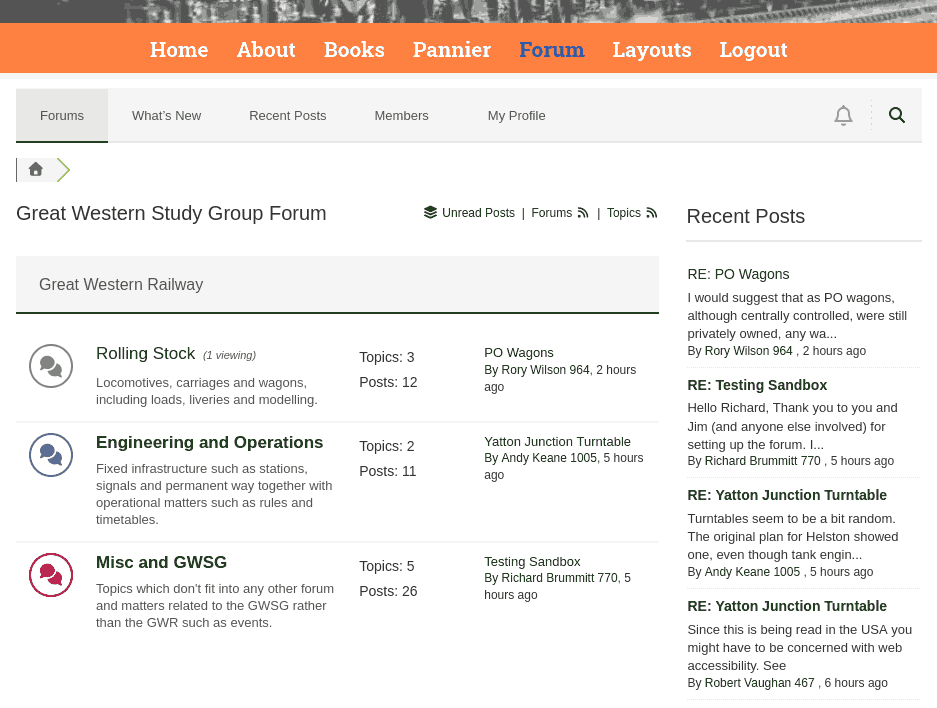
The first thing to note is that a new grey menu bar has appeared below the original red one. This second menu is used to navigate the forum. If at any time you get lost in the forum you can return to this front page by selecting either “Forums” on the grey menu bar.
As you can see, we have three “sub-forums” coving different topics. It is here that we strike a possible area of confusion. It is abundantly clear to everyone that we have one forum with three sub-forums, but the authors of the software would describe this as one “Category” with three “Forums”. Unfortunately we can’t change this nomenclature, but in this guide I will stick to the logical forum with sub-forums description.
Finally, note that some titles are in bold which indicates that you haven’t read something. This rule applies to forums, topic or posts.
For each sub-forum there is a brief description of its purpose, some statistics and some facts about the most recent post. On the right hand side of the page is a list of the most recent posts drawn from all three sub-forums.
Let us explore one of the sub-forums and we’ll try “Rolling Stock” so click on that to proceed.
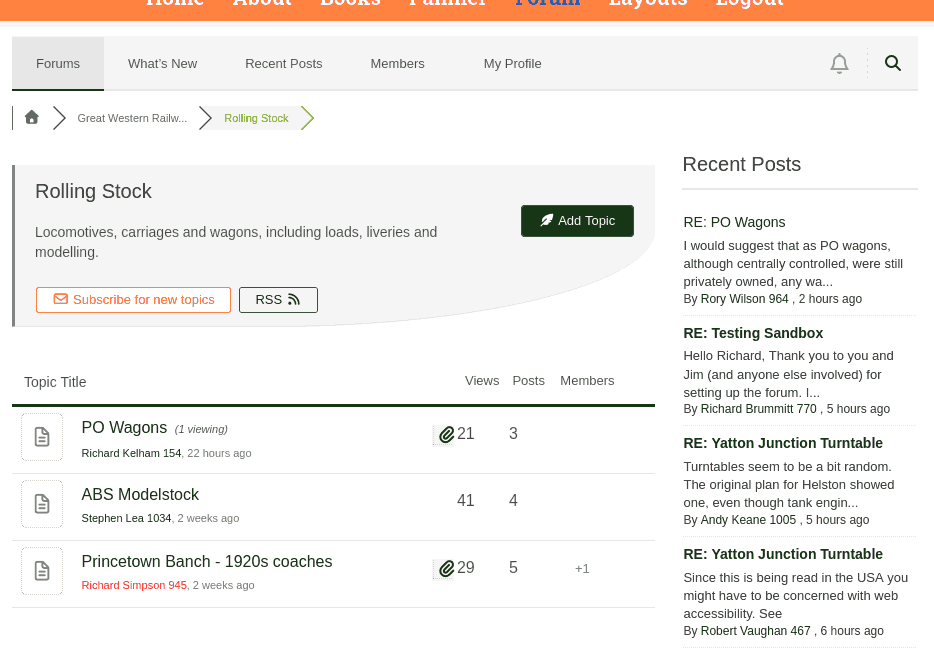
Once inside a sub-forum we see a list of topics with the most recently posted to ones listed first. Also shown is the person who created the topic and when they did so. “Views” and “Posts” are hopefully obvious. The paperclips indicate that a topic has some media attached to it (most likely a photograph) and I haven’t worked out yet what the “Members” column is for.
To read a specific topic we simply click on the title and the posts are presented to us with the oldest at the top as we see below.
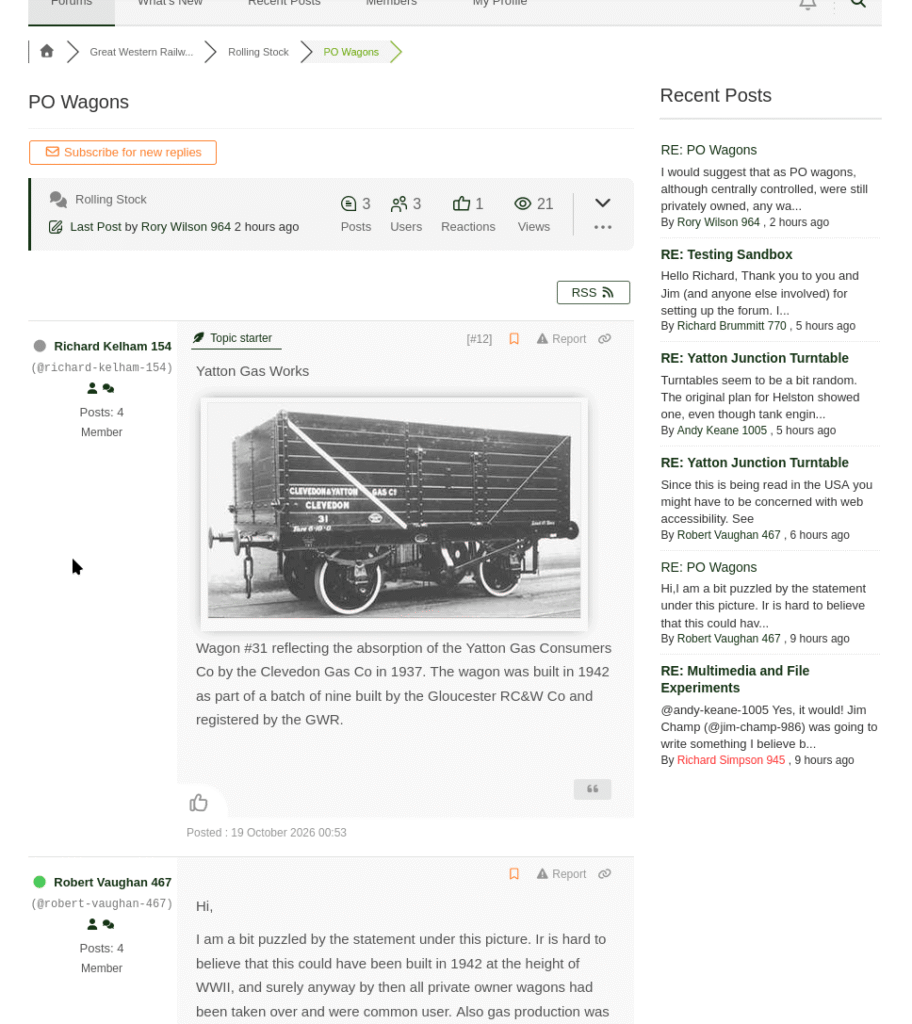
There’s a lot to unpick here and I’ll only cover the basics in this page.
The first and most important point to note is that unlike the old forum, posts can now include images and indeed videos and a great number of other possibilities. I’ll go into attachments in more detail in a future set of instructions, but for now all you need to know is that if you click on an image then you will see a bigger version.
Next to each post is details of who posted it. The green blob next to Robert’s name indicates that he is currently logged in and browsing the forum. The bottom item where it says “Member” is used to indicate committee positions; so for example “Chairman” or “Secretary”.
The little “Thumbs Up” symbol at the bottom of each post is used to “React” to the post. Clicking on this allows you to approve or disapprove of the post and I’m hoping that members will generally refrain from using the latter. If you like a post and want to indicate this then please use this feature rather than add an entire extra post just to say “Thanks”. The author will be able to see that you approved.