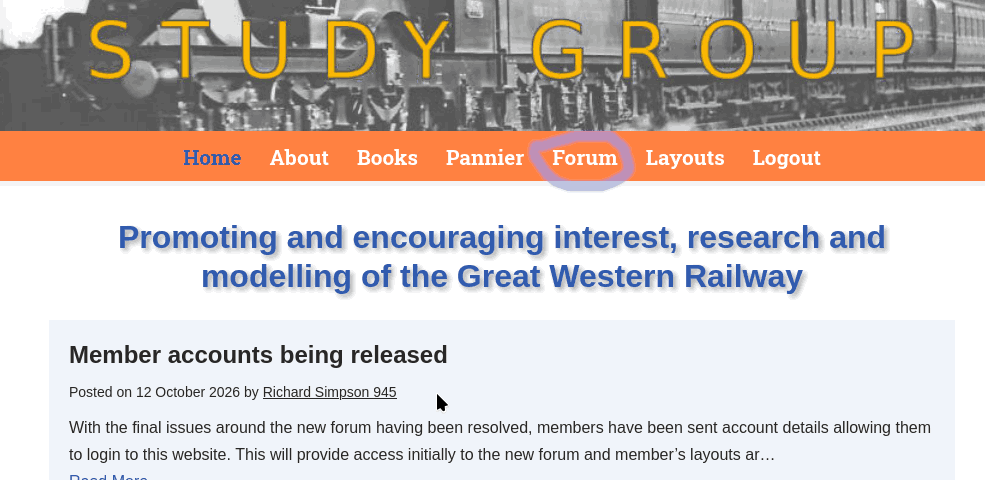
The new GWSG forum is one of a number of features of the GWSG website which are only accessible to members and you therefore need to login before you can access them.
Access requires a username, password and email address. The email address used is the one in the membership database, which may or may not be the one you use to access the old forum at Groups.io. If it is incorrect then you will be unable to access the website and you should send a correction to the Membership Secretary. You username is derived from your name and membership number; mine is rsimpson945. You will be sent a confirmation of this when you are invited to join.
You will be sent an email inviting you to join, this can take two forms:
Bulk invitations
During the initial process of activating the members area, a bulk signing-up tool was used. This produced emails similar to that below:
Subject: Welcome to the new Great Western Study Group forum

Dear Member,

You have been given an account on the GWSG website at gwsg.org.uk<https://gwsg.org.uk/>.  This account will give you access to the new forum which is replacing the old forum hosted for us by Groups.io together with members only content such as "Member's Layouts" and extra information for some Pannier articles.

Your data to login is:

  *   URL to login: https://gwsg.org.uk/
  *   Username= amember123
  *   Password = lHNY39F9s(VX

When you visit the site select the "Login" link on the menu bar at the top of the page.  You will be required to set a new password when you first login.  Instructions for doing this are in the attached PDF.
Simply click on the link to take you to the group’s website. On the right hand end of the menu bar under the photo of the train is a button labelled “Login”. Click on this and enter your username and password from the email then follow the instructions in the PDF which was attached to the email.
Individual invitation
This mechanism will be used with all new members added after the initial bulk registration and also in the case of members who have failed with the above process and locked themselves out. This is also the process which you will follow if you forget your password and have to use the “Lost your password?” link.
You will receive an email similar to the example below:
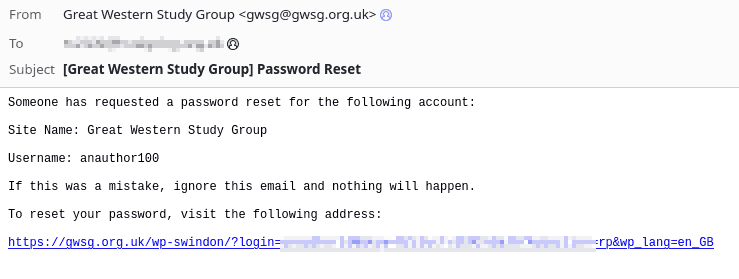
Click on the link and you will be taken to the password reset dialogue.
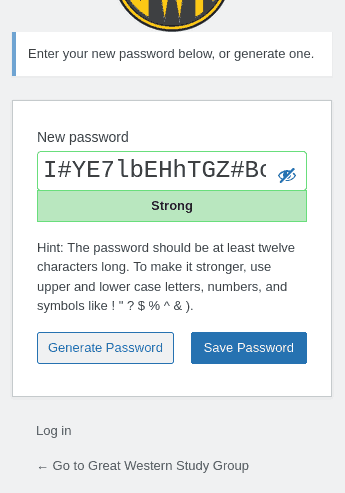
You will be offered a randomly generated strong password. You can accept this if you want, but you can also change it for something simpler. Delete the suggested password and start entering a password you would like. As you do so, the box below the password will change to show how good it is. Your password must be “Medium” or “Strong” for it to be accepted. Please note that the 12 character length mentioned is a suggestion and not a requirement. If at any time the password is replaced by dots then click the picture of an eye at the right hand end.
When you are happy with your password, write it on a bit of paper! You can now click “Save Password” and the box below will appear.
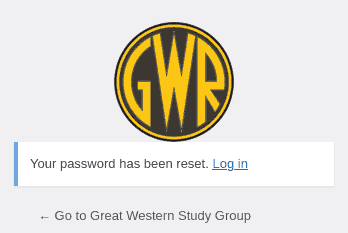
Click on the “Log in” link and you will be taken to the main login dialogue where you can enter your username and new password.
Once you have logged in then the menu bar will change to show some new options including the link for the new forum.